PeakMode › All features
All features
Everything PeakMode includes, and what you can adjust in each tool. Every feature is available from both the menu bar and a shortcut.
Cursor Highlight
Emphasizes the cursor so everyone's eyes follow it.
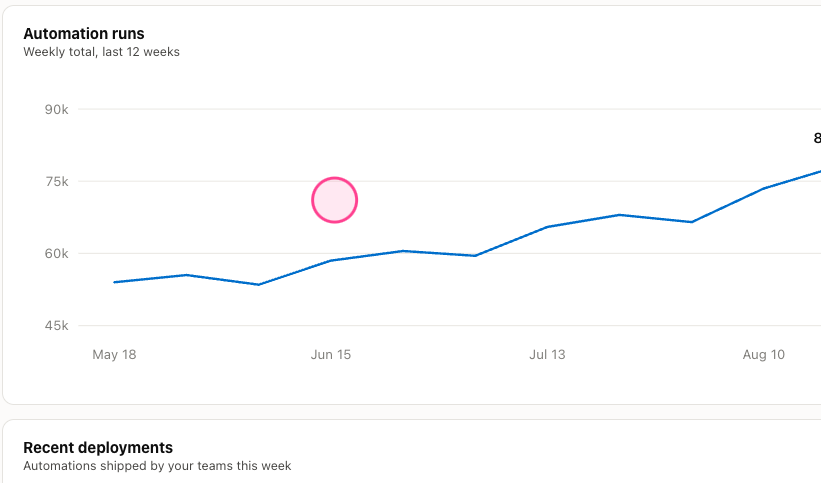
- Four styles: ring, disc, laser pointer, and halo glow. The laser pointer is a red dot with a fading trail; the halo casts a soft glow around the cursor.
- Eight preset colors plus a custom color (the laser pointer stays classic red).
- Adjustable size (24–120) and opacity (30–100%).
- Click animations: a left click ripples in your highlight color, a right click ripples twice in blue — viewers can tell which one you pressed. Can be turned off.
- The highlight never gets in the way — clicks pass straight through to the app underneath.
Spotlight
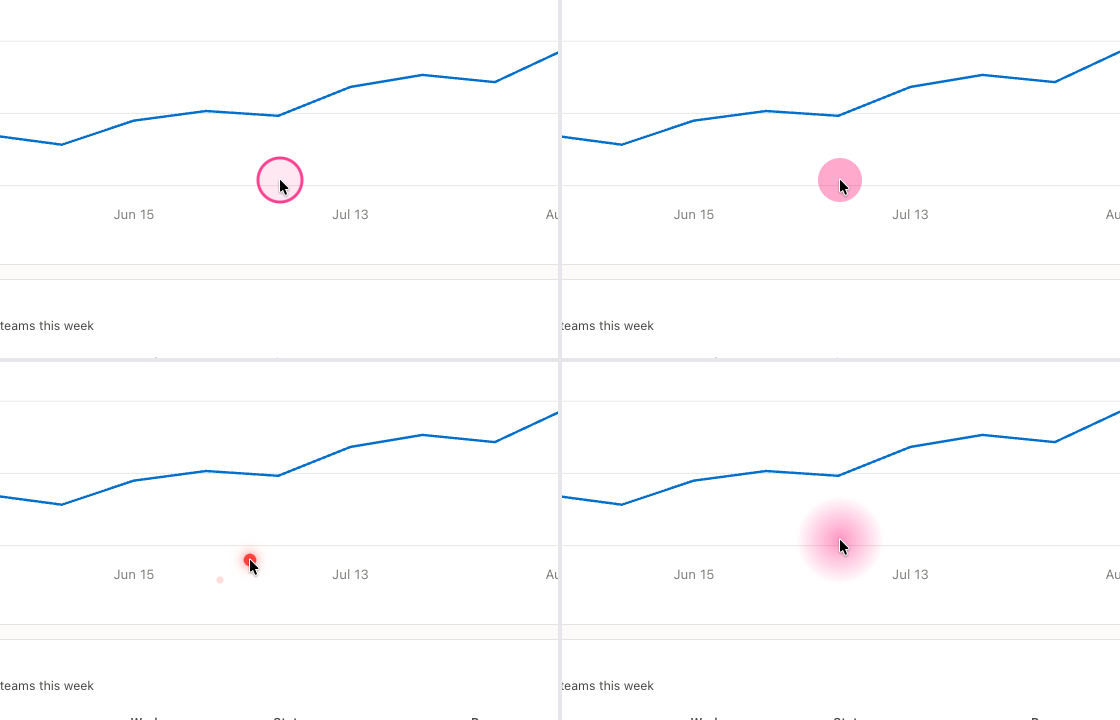
Dims the whole screen except a circle around your cursor.
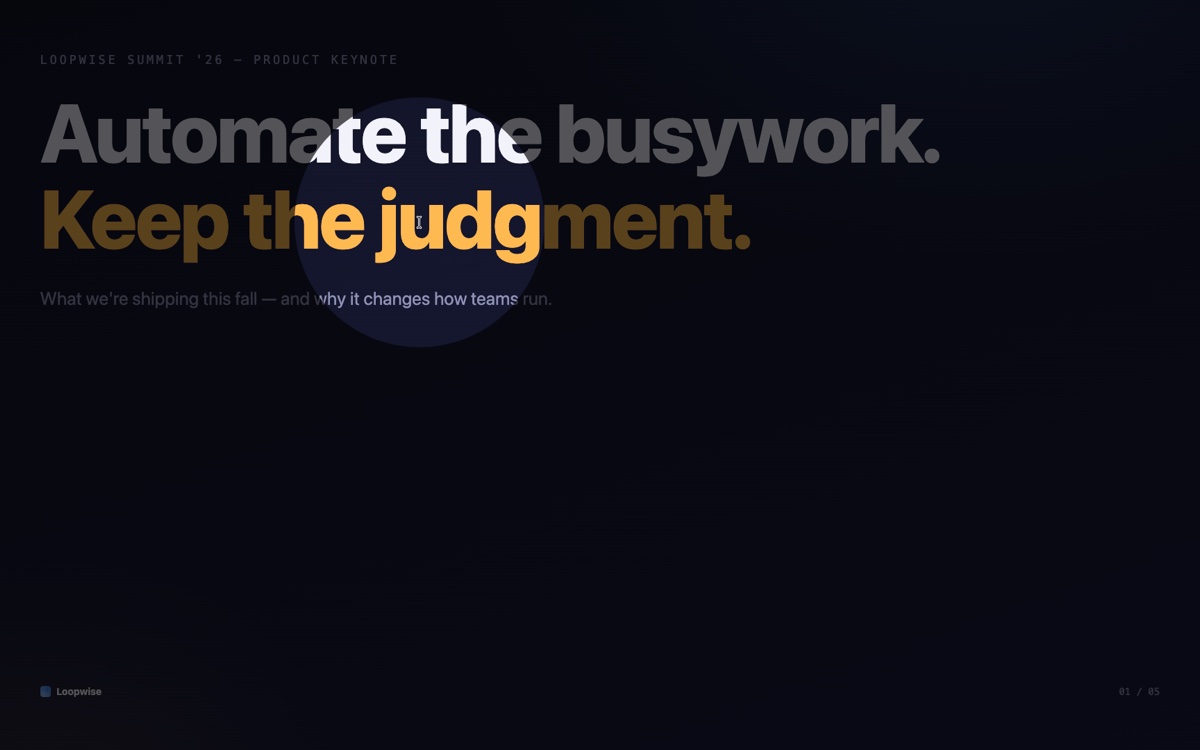
- Darkness adjustable from 20–95% (default 65%).
- Circle radius from 40–400 — and you can resize it mid-presentation with option + scroll; the size sticks for next time.
- With several displays, everything dims and the circle opens on the display your cursor is on.
Zoom
Magnifies the area around your cursor for as long as you hold the shortcut.
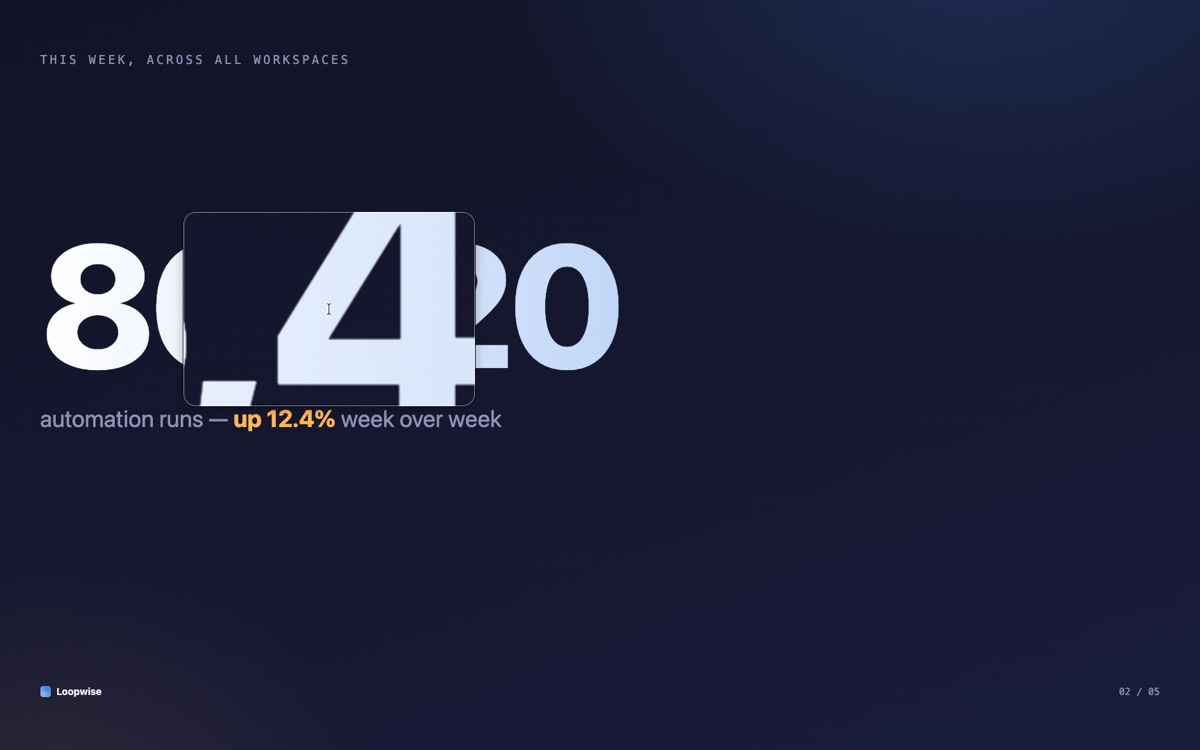
- Release the key and it's gone. Use it from the menu bar instead to keep it on screen.
- Magnification from 1.2–6.0× (default 2.0×) — change it while zoomed with option + scroll.
- Loupe size adjustable from 150–600 pt.
- Follows the cursor, including across displays.
- The magnified image is shown live and never stored. Requires the Screen Recording permission (see Permissions).
Drawing
A mode for drawing anywhere on screen. A floating toolbar appears at the bottom (drag it wherever you like).
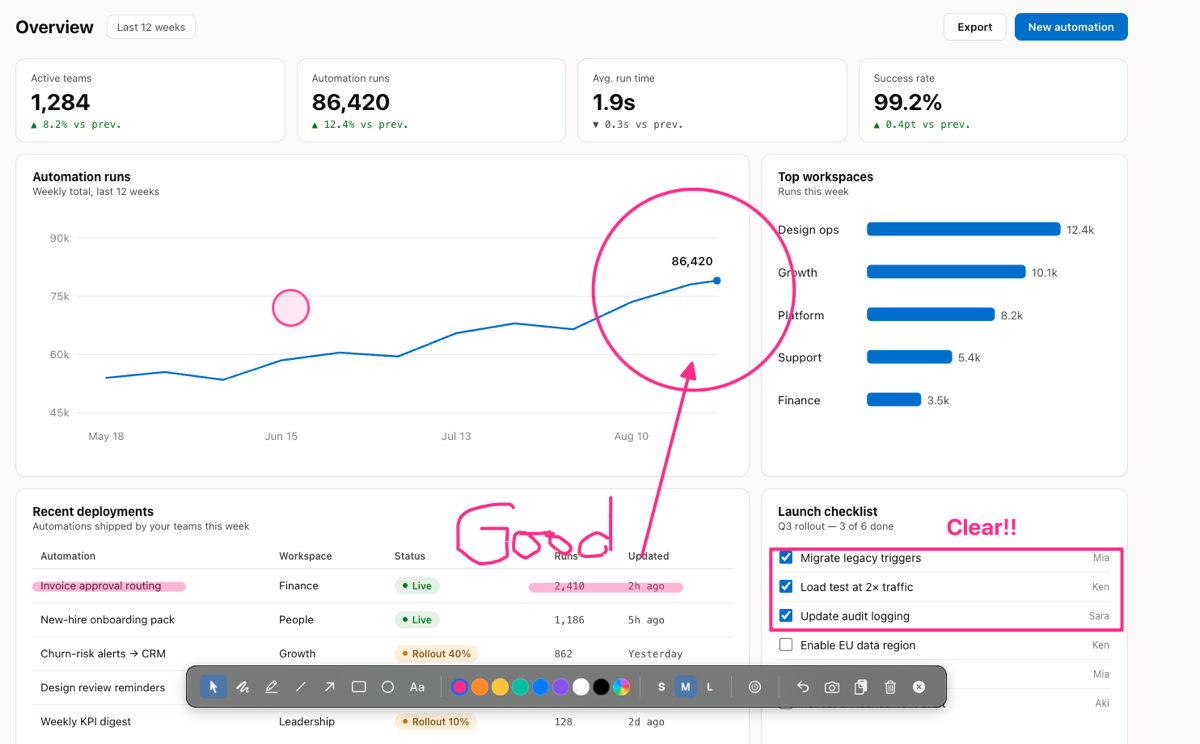
- Eight tools: select & move, freehand, highlighter, line, arrow, rectangle, ellipse, and text.
- Eight colors plus a custom color; your three most recent custom colors stay available as extra swatches.
- Three stroke widths. The highlighter automatically draws wider and semi-transparent, and text size follows the width setting.
- Hold shift while drawing: lines, arrows and highlighter strokes snap to 45° steps; rectangles and ellipses become perfect squares and circles.
- Undo with command + Z, redo with shift + command + Z. Selected shapes can be dragged to move or deleted with delete.
- Invisible ink: strokes fade out on their own after 1–10 seconds (default 3). Toggle it in Settings or right on the toolbar.
- Save or copy the annotated screen as a screenshot — the toolbar and palettes are never in the shot. Optionally leave drawing mode automatically after copying (on by default).
- When you exit drawing mode your strokes stay visible while clicks return to the app underneath. Clear them from the toolbar's trash button, the menu bar, or a shortcut.
- Esc steps back one level at a time: text editing → deselect → exit drawing mode.
Hold to Draw
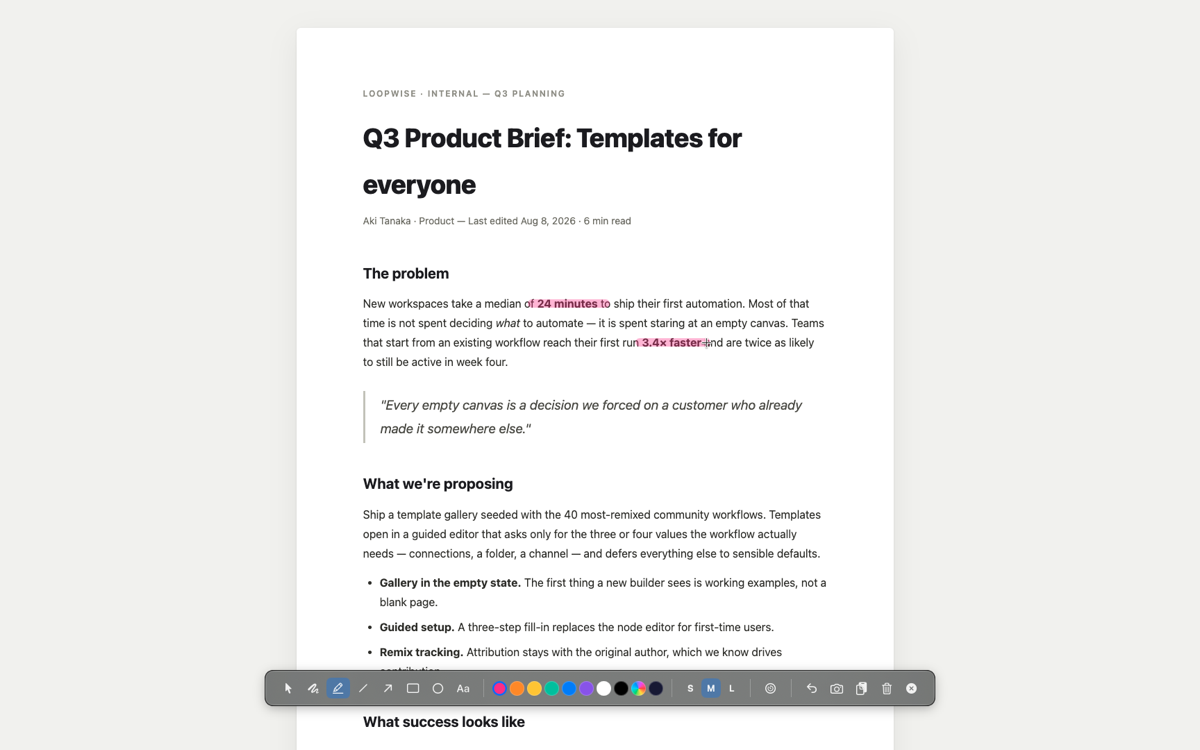
The fastest way to draw — no mode to enter or leave.
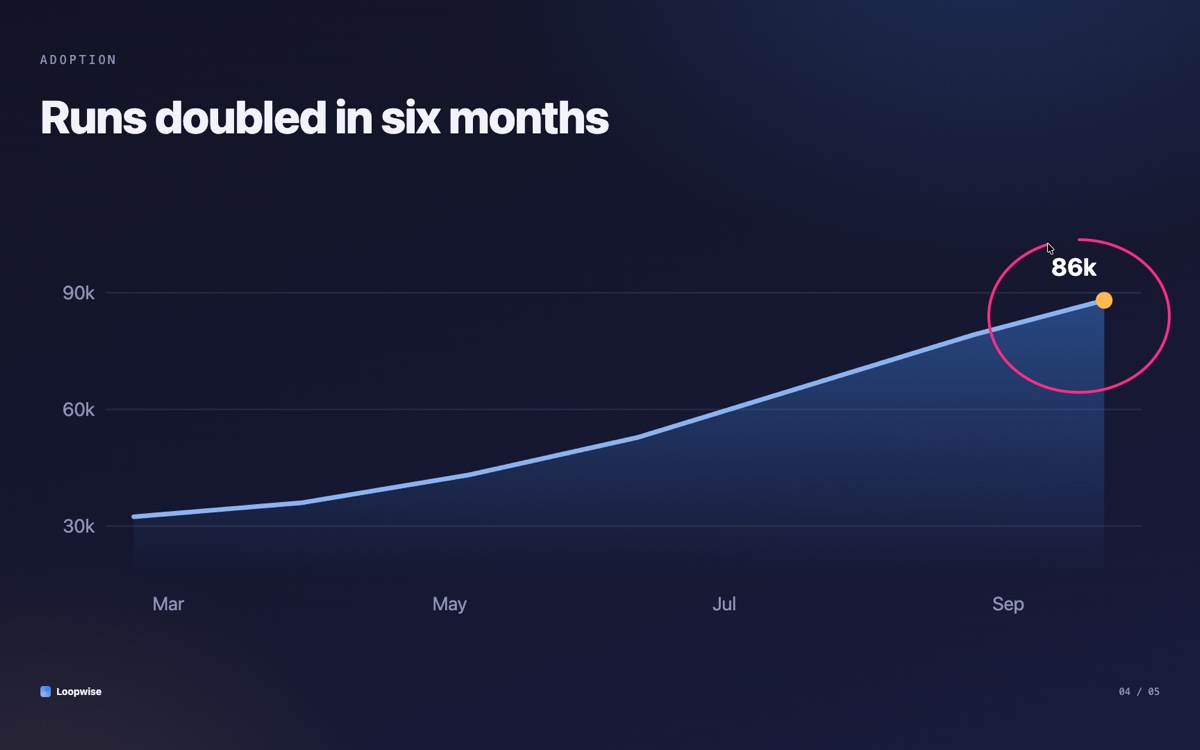
- Draw over any app for as long as you hold the key. The hold key is your choice of control + option or the fn (globe) key.
- No toolbar appears and focus never leaves your app. It uses the tool and color you last picked.
- A 0.25-second hold threshold prevents accidental triggers — pressing an ordinary shortcut never flashes into drawing.
- Can be turned off entirely in Settings.
Whiteboard
A clean, full-screen canvas with the same drawing tools (default ink: black).
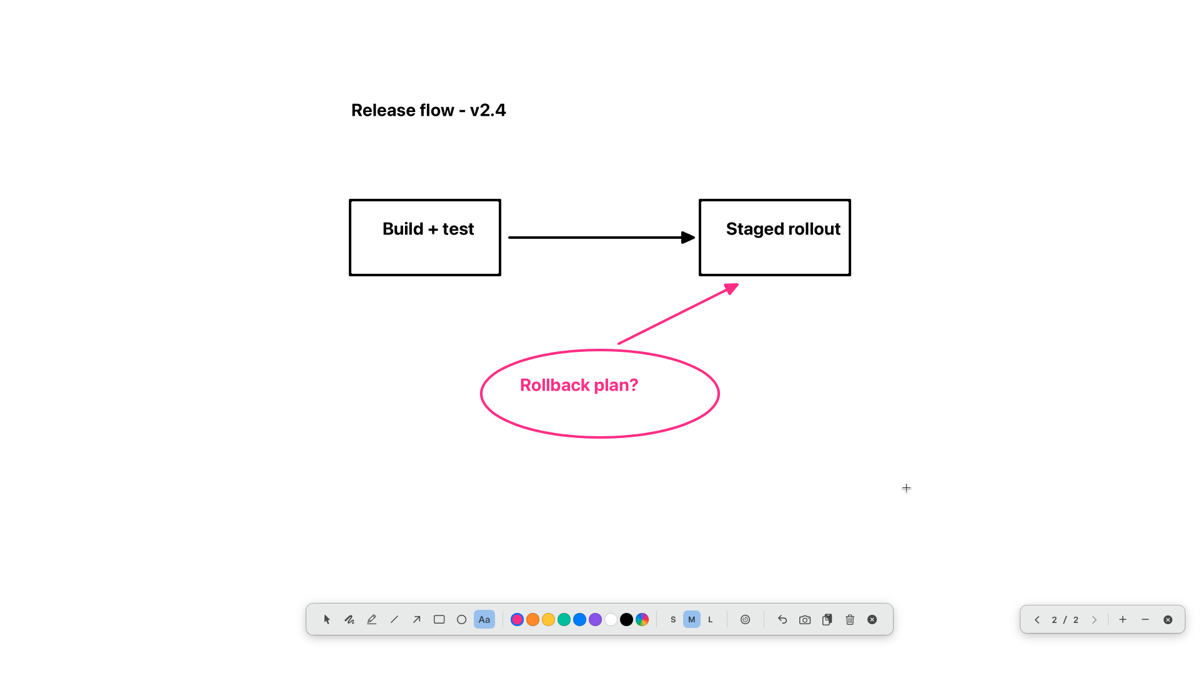
- Multiple pages: flip with the page controls on the right edge or the ← → keys; add and delete pages freely.
- Autosaves as you draw and reopens right where you left off.
- Export any page as a PNG, or copy it to the clipboard. Neither needs any permission.
Quick Access
A launcher that gets you to your demo files without hunting for them.
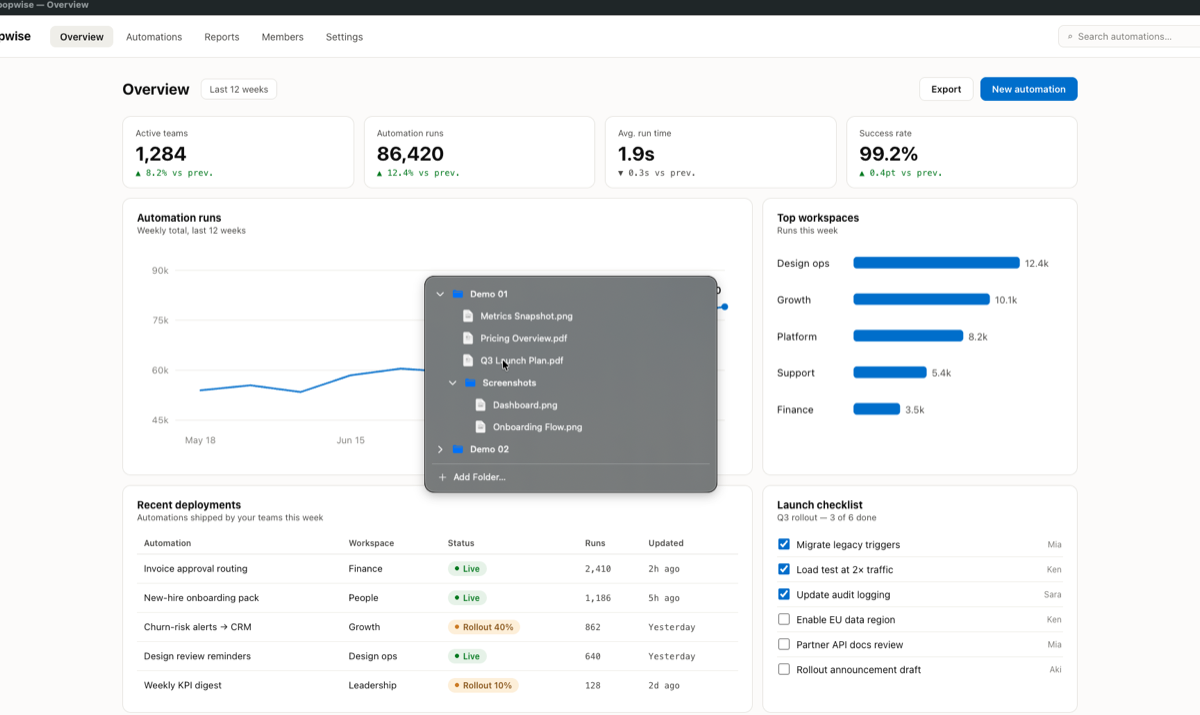
- Register your folders once; the shortcut pops a file list right at your cursor.
- Subfolders expand inline, up to four levels deep. Click a file to open it, or a folder name to reveal it in Finder.
- With a single registered folder, the palette opens already expanded.
- The same folder tree is available from the menu bar.
- Dismiss with esc or by clicking anywhere else.
Timer
A small countdown that floats above everything.
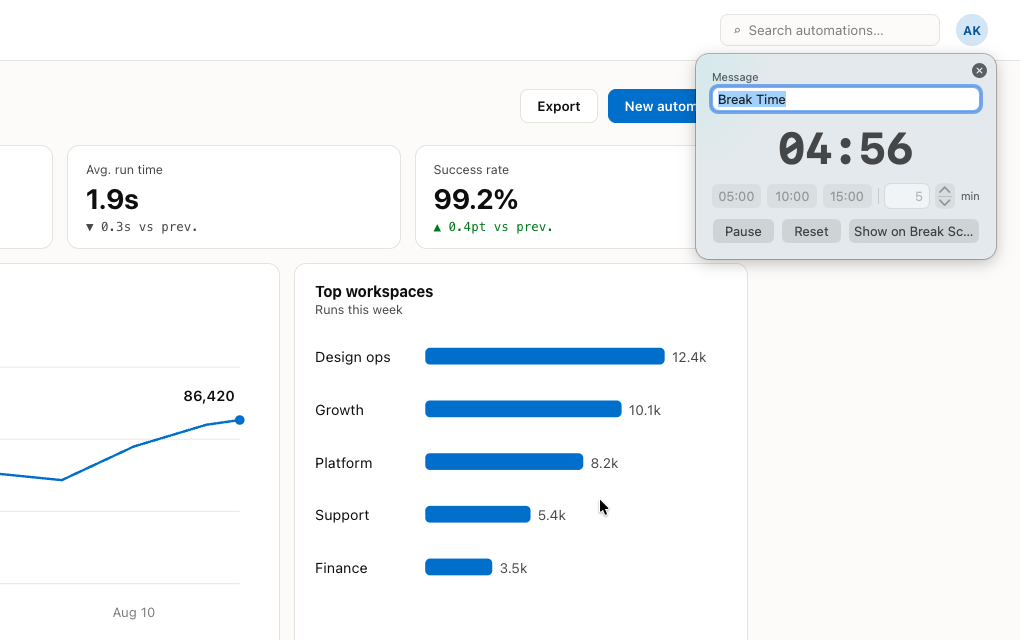
- Presets for 5, 10 and 15 minutes, or any duration from 1–180 minutes (default 5).
- Start, pause, resume, reset. Drag the panel anywhere.
- At zero it freezes on a red 00:00 and plays a sound.
- The message field is shared with the break screen — one tap shows the countdown there, big.
Break Screen
A full-screen cover for breaks, on every display.
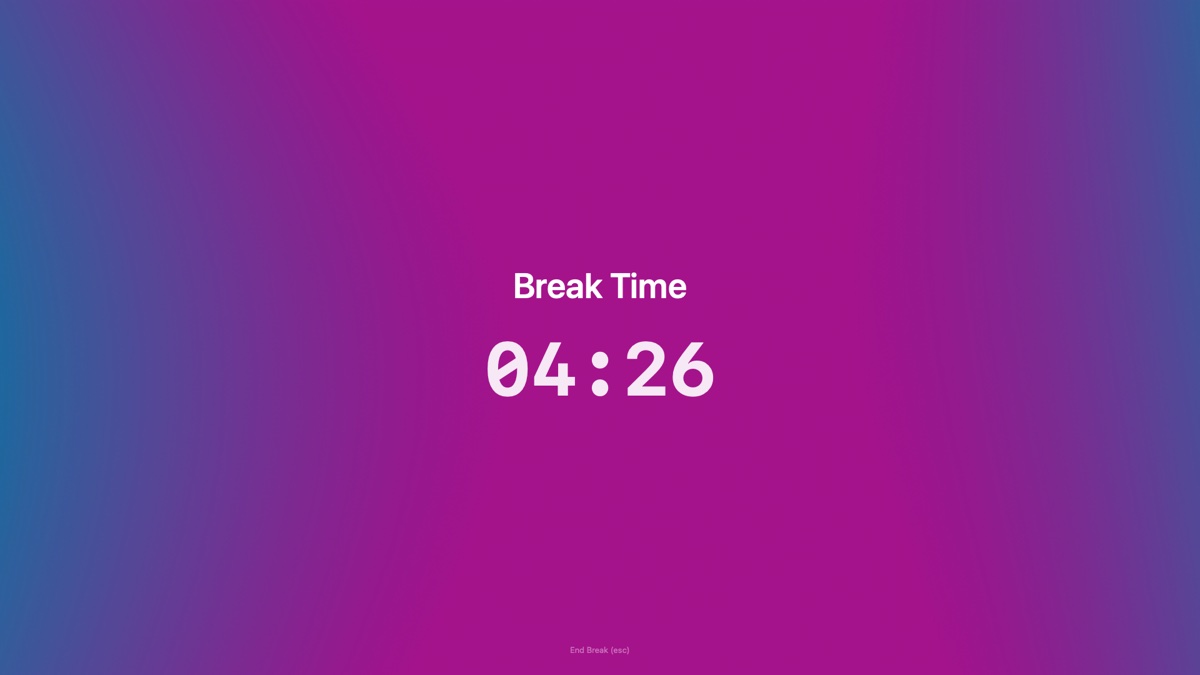
- Shows your message — and the countdown, while the timer is running — in large type. Text color is adjustable.
- Backgrounds: six gradients, a solid color, or your own images and videos. Videos loop, with an optional sound toggle (muted by default).
- Your images and videos are copied into the app, so they keep working even if you move the originals.
- End it with the esc key.
Shortcuts
Every feature has a shortcut, and every one can be rebound in Settings > Shortcuts. The defaults are listed below (all control + option plus a left-hand key).
| Feature | Default | Behavior |
|---|---|---|
| Cursor Highlight | control + option + C | on / off |
| Spotlight | control + option + S | on / off |
| Zoom | control + option + Z | while held |
| Start Annotation | control + option + D | on / off |
| Clear annotations | control + option + X | action |
| Whiteboard | control + option + W | on / off |
| Quick Access | control + option + Q | show |
| Show Timer | control + option + T | show |
| Break Screen | control + option + B | on / off |
| Hold to Draw | hold control + option | while held |
- A "Reset All to Defaults" button restores the table above.
- Rebound keys show up immediately in the menu bar, settings hints and the welcome guide.
- Hold to Draw uses a held key rather than a key combination — pick control + option or fn in Settings > Annotation.
More
- Welcome Guide: a one-screen tour of every feature with its current shortcut. Shows at launch (can be turned off) and is always available from the menu bar.
- Launch at login and Show Dock icon options (both off by default — PeakMode normally lives only in the menu bar).
- Export folder: screenshots and whiteboard exports go to a folder you pick on first save; change it any time in Settings > General.
- Six languages: English, Japanese, Korean, Simplified Chinese, Traditional Chinese and Spanish.
- Requires macOS 14 or later.
Permissions
PeakMode asks for one permission only — Screen Recording — and it's optional. It is used in exactly three places:
- Zoom (the live magnified image; nothing is stored)
- Saving screenshots with your drawings
- Copying screenshots with your drawings
Everything else — cursor highlight, spotlight, drawing, hold to draw, the whiteboard (including export and copy), quick access, timer and break screen — works without it. No other permission is ever requested, including Accessibility. See the privacy policy for details.